Showing posts with label confusing. Show all posts

Thursday, January 20, 2011

Another reason I love the Mac: Control Panel vs System Preferences

Have you ever taken a good look at the control panels in both Windows and OS X? When I used to be a die-hard Windows user, the XP-style control panel and all its options I looked at as an advantage, where a user can have much control over his or her machine. And as a nerd, sorting through those complicated options I found a necessary evil.

But when I see less computer-literate family and friends wondering how to change their security settings or uninstall a program, the Windows Control Panel is cryptic.

It's interesting that people who have never used a Mac just assume that computers will be difficult to use and never look at it any other way; they assume themselves less capable to figure out how to get what they need from their machines. They are perfect examples of folks that need to look at Apple's offerings, if they can afford it.

As Windows adds more features, the options for tweaking those features grow and grow. However, that seems to unfortunately correspond with its complexity of use. Though Microsoft has altered the way they list these options, giving an abstract category view, you'll notice how much is left out and still troubling from a design standpoint.

I'll show you the difference between altering settings through the System Preferences panel on a Mac and the Control Panel, and let you decide which seems the less complicated...

Lets start with a simple option of changing some of the mouse settings.

In Windows, you start at the Control Panel in it's default category view, as it looks in Windows 7 Home Premium: (You can click these images to view them full size)

Control Panel in Windows 7
Here you are presented with a category view of the different options of things you can change. We're look for mouse settings. Scanning through the headings and then their subheadings, try and decern where the mouse might be hiding. Or look at it this way: You are your grandmother, for just a moment (and if your grandmother is dead, just pretend you're old and unsure about all this technological stuff).

Obviously, the mouse should be under "Hardware and Sound." Well, that would be obvious if you are aware that the mouse is considered hardware yet not at all related to sound...

Next we're presented with this new page and all its options in the "Hardware and Sound" page:

Hardware and Sound Control Panel

Okay, so far so good. Do you see "Mouse" anywhere? Look real hard. It's the word that says "Mouse," in case you were confused, under "Devices and Printers."

Let's just assume your grandmother made it this far.

Another click on "Mouse" gives us an entirely new control panel and lots of tabs:

Windows 7 Mouse Properties
Alright! You did it! And now you can go through this mess to change what you want, if you know what you want...

If all those steps were too confusing, you could always navigate through this stuff -- the Large Icon view (make sure you know your ABC's and exactly how the Windows operating system would list what it is you're looking for):

Control Panel Large Icon Views
Okey doke!

Now let's look at that in Mac OS X:

Click "Mouse."

Mac OS X System Preferences

That's it!

And it comes complete with video tutorials built in and everything:
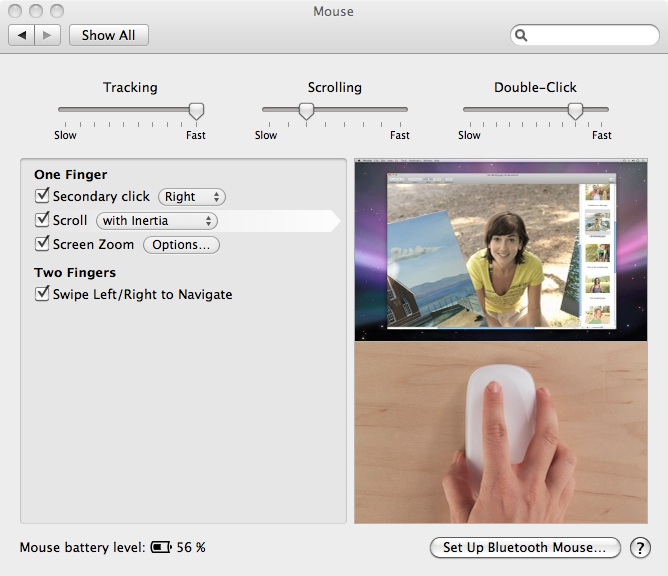
Mac OS X Mouse Preferences


Monday, December 13, 2010

Chrome web apps work anywhere... even Safari

I'm not completely sure of Google's goal with Chrome-based web apps, but it seems that most of the apps available work pretty much everywhere. No Chrome required.

Take a look at these popular web apps, working just fine in multiple browsers.

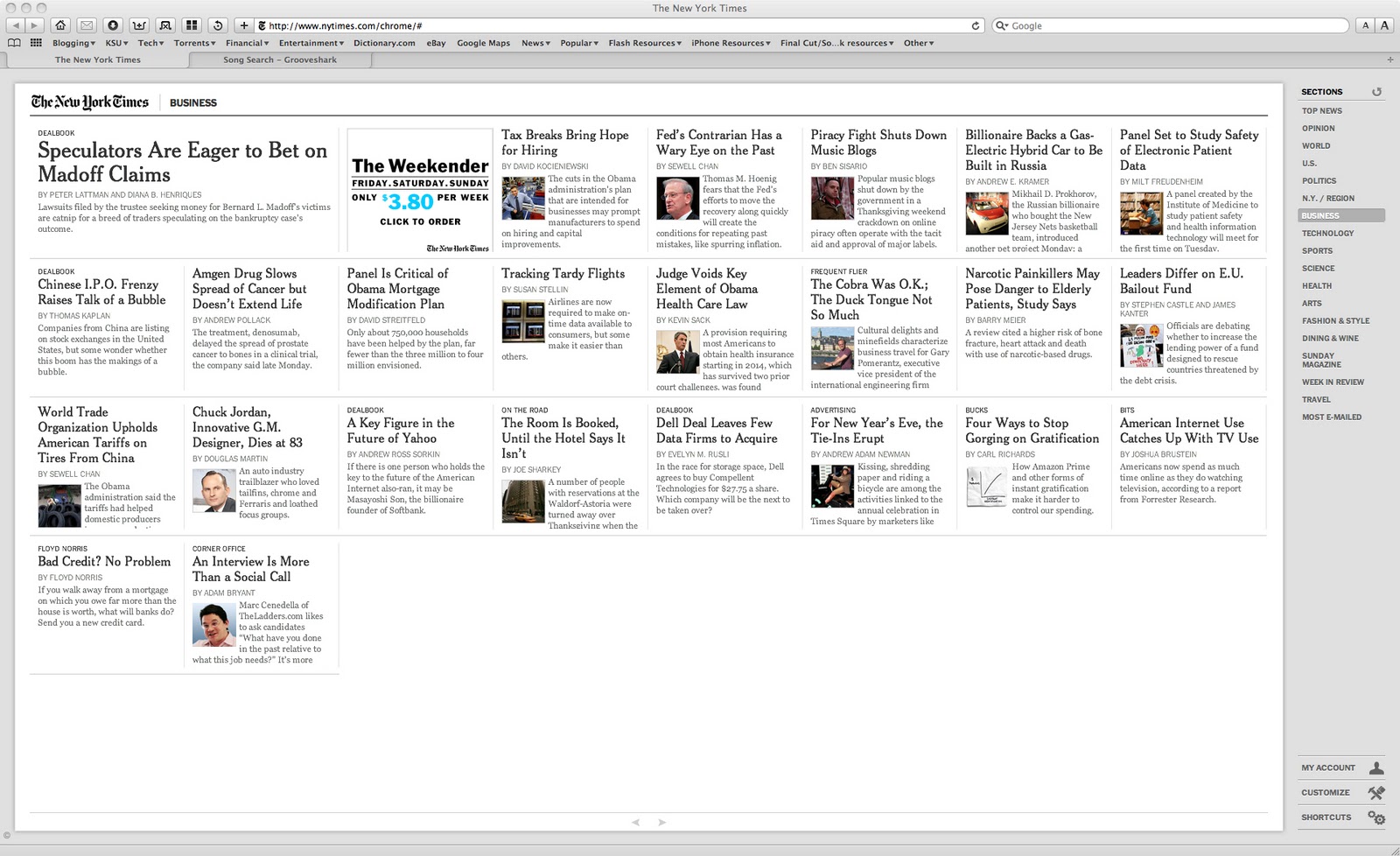
Here's The New York Times "Chrome" web app (click to enlarge):


And here's the same NYT web app in Safari:


So, I'm a little confused. If these apps are Chrome branded apps, and many are sold through the Chrome web store, what's the point if you can load them up anywhere you wish?

Well, the web, thankfully, is a standards-based development environment. It has to be in order for information and media to work across the world. And for that reason, this stuff works everywhere. Just enter the address into the address bar that is designated for that function of the website. For the NYT example, just type in www.nytimes.com/chrome/# and hit enter. Or just click the link. It should work in your browser just fine: Internet Explorer, Firefox, Safari, and Chrome. I haven't tested it in Opera, though.

Your browser might ask you to if its okay for the app to use a bit of your hard drive for offline storage. Just hit okay, and you're off. In chrome, it doesn't ask, but that's about the only difference I can tell so far. I'm sure there are few web apps on the Chrome web store that use something specific to the Chrome browser, but for these popular, more generic apps, they seem to work just fine.

Here's some other examples of the web apps in Safari: Springpad, Grooveshark, Picnik, and Amazon's Windowshop (beta).

Yep.